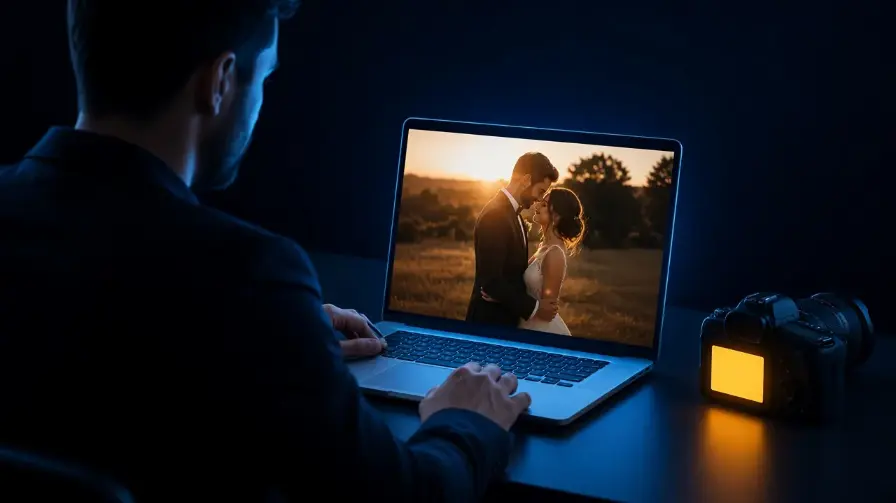
Use an online photo editor inside the event gallery: filters, crop, frames, and privacy blur — then replace the original or save a copy before guests scan.
Introduction
Most event galleries still leave the building before anyone has touched color, crop, or a stray face in the background. Photographers export from a desktop editor, re-upload, and hope the right file replaced the right thumbnail.
An online photo editor built for events shortens that loop. You open the photo already sitting in the gallery, tap Edit, and publish the fix — without bouncing through another app.
This guide is about an event photo editor : browser tools for filters, frames, crop, text, and privacy blur on photos you already uploaded. It is not a Lightroom replacement, and it is not another delivery explainer. For guest discovery after you publish, see AI photo sharing for events and event photo sharing.
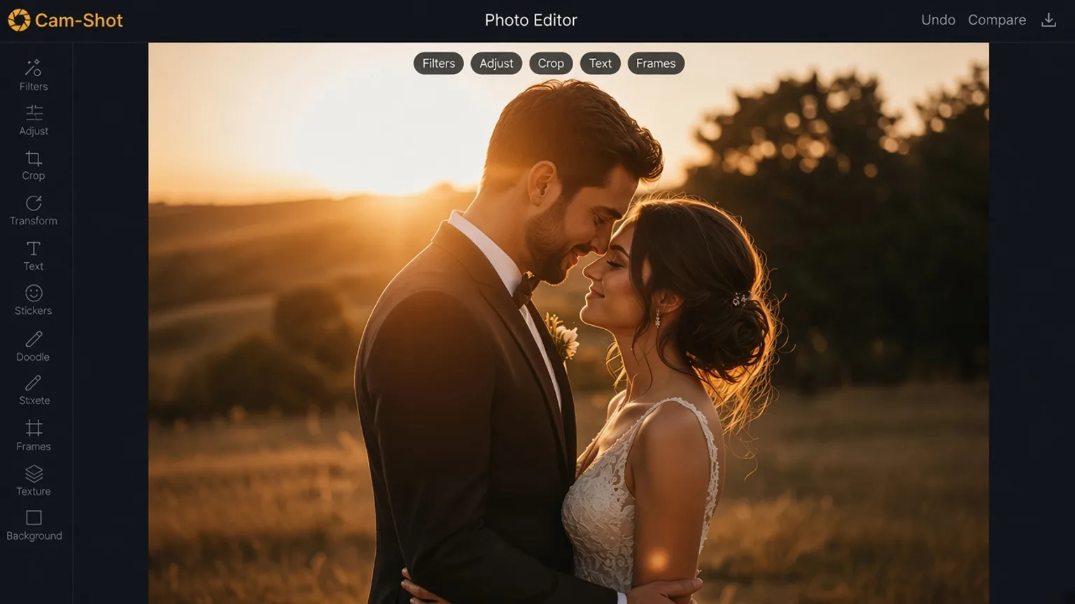
Edit the photo that is already in the event — then replace it or save a copy.
Common Mistake: Treating “edit” as a separate product. If guests will see the file in minutes, the editor belongs next to the gallery, not in a second desktop queue.
What an event photo editor actually is
A generic online photo editor is a canvas for any JPEG. An event photo editor is a canvas attached to a live gallery.
That difference matters. Event photos are already named, stored, and about to be found through QR access or face match. A crop or filter has to land on the same asset guests will open — otherwise you create duplicate files, broken thumbnails, and two versions of the truth.
A studio-grade event editor should:
Open from the photo you already uploaded
Run in the browser, on the same event
Offer filters, crop, frames, text, and privacy tools
Let you replace the original or keep a copy
Download in Normal or High quality when you need a local file
Cam-Shot’s Studio Photo Editor is built on that path: open an event, open a photo, tap Edit.
In-gallery editor vs Lightroom and Photoshop
Desktop suites still win for full wedding retouching, batch color, and album design. The in-gallery editor wins for the last-mile fixes that delay publishing.
| Lightroom / Photoshop | Event photo editor (browser) |
|---|---|
| Best for. Full cull, color grade, composites | Best for. Quick fixes on already-uploaded photos |
| Where the file lives. Local catalog, then re-export | Where the file lives. Inside the event gallery |
| Guest impact. Delayed until you re-upload | Guest impact. Thumbnail and gallery update on replace |
| Learning curve. High | Learning curve. Tap Edit and start |
| Watermarks / wedding presets. Depends on your setup | Watermarks / wedding presets. None in Cam-Shot — filters, crop, frames, blur |
| Privacy blur on a live set. Extra export step | Privacy blur on a live set. Hide faces, then publish |
Best Practice: Keep desktop software for the album and hero set. Use the browser editor for same-day selects, crop mistakes, and privacy before the QR goes live.
How to start editing in the browser
The workflow is four steps — the same sequence as the Photo Editor page:
Open an event in Cam-Shot Studio.
Open a photo you want to change.
Tap Edit to load the photo editor.
Start editing — filters, crop, text, stickers, frames, and more.
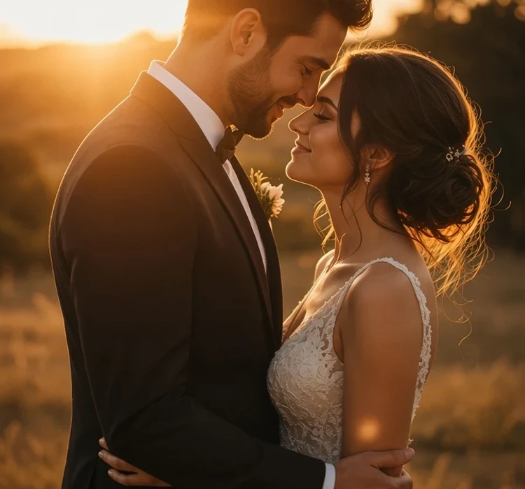
After Edit, every tool is on the photo you already uploaded.
Pro Tip: Edit the live hero set first — the frames guests will see on screens and in the first QR scans — then expand as the rest of the cull finishes.
Editing tools that matter on event photos
Event work is high volume. You need fast looks, not a 200-slider lab. A practical browser photo editor should cover:
| Tool | What it is for |
|---|---|
| Filters | About 33 looks — Soft, Warm, Cool, B&W, Vintage, Portrait, Glow, Cinema |
| Light & color | Brightness, contrast, warmth, sharpness, fade, vignette |
| Crop & transform | Free crop, 1:1 / 4:5 / 16:9, rotate 90°, flip |
| Text & stickers | Captions and emoji on highlights or social cuts |
| Draw | Sketch; eraser removes only what you drew |
| Hide faces & details | Pixelate or blur private areas before publish |
| Overlays & frames | ~20 textures (grain, glow, light leak) and ~30 mats |
| Background color | Solid border, including a custom color |
Undo, redo, and Compare let you check the photo before and after. Download in Normal or High quality when you need a file on disk.
Replace original vs save as copy
This is the decision studios get wrong on the first event.
Replace original updates the event photo and the event thumbnail. Use it when the unedited frame should not stay in the guest gallery.
Save as copy keeps the original and uploads an edited version. The copy uses storage like a normal upload. Use it when you still need the uncropped file later.
Expert Advice: Replace for privacy crops and obvious mistakes. Save as copy for stylized frames you might not keep as the master file.
Hide faces and private details before guests see the gallery
Event photography is public-adjacent. A badge, a whiteboard, a child in the background, or a guest who asked not to be shown can sit inside an otherwise perfect frame.
Blur and pixelate inside the gallery — then replace — is faster than a desktop round-trip, and it matches the privacy stance on the About Cam-Shot AI page: studios keep control; guests should not be surprised by a full unfiltered roll.
Pair this with PIN or password galleries and AI Gallery matching, so people see their moments without you publishing every face by default. For how matching works, see AI face recognition for event photography.
When to use an online photo editor on event day
Use the in-gallery editor when speed beats a full grade:
- Same-day hero set for instant photo sharing
- Crops for TV / screen playback
- A frame you need to publish before QR cards go on tables — see QR code photo sharing
- A privacy fix after a client message
- A filter pass on a handful of highlights, not the whole 4,000-image cull
Do not use it as the only editor on a multi-day wedding album. Desktop still owns that job. For client shortlists after the event, use photo selection rather than editing every liked frame by hand.
How Cam-Shot Studio Photo Editor fits the workflow
Cam-Shot Studio Photo Editor sits on the photo you already uploaded. There are no watermarks and no one-tap wedding presets — filters, light, crop, text, stickers, draw, hide details, overlays, frames, and background color.
The path is the same as the rest of the platform: upload once, edit in place, then share with QR and face discovery. That is the “time back for studios” idea behind Cam-Shot — less logistics, more craft. Explore how it works and plans when you want to try it on a live event.
The editor starts from the event gallery — not from a separate export folder.
Conclusion
An online photo editor for event photographers is a delivery tool. It keeps last-mile edits on the same file guests will open.
Use desktop software for the album. Use the browser editor to crop, filter, frame, and hide details before the gallery goes live. Replace when the original should disappear; save a copy when you still need the master.
If the next event needs a live set by dinner, start here: open the event, open the photo, tap Edit.
Keep going: See the full tool list on the Photo Editor page, then pair edits with client photo proofing and an AI event gallery.
Need same-day guest access after you publish? Read instant photo sharing, QR code photo sharing, or start from the Cam-Shot homepage.
No credit card required to try Studio.